Why Edit Abs on a Photo?
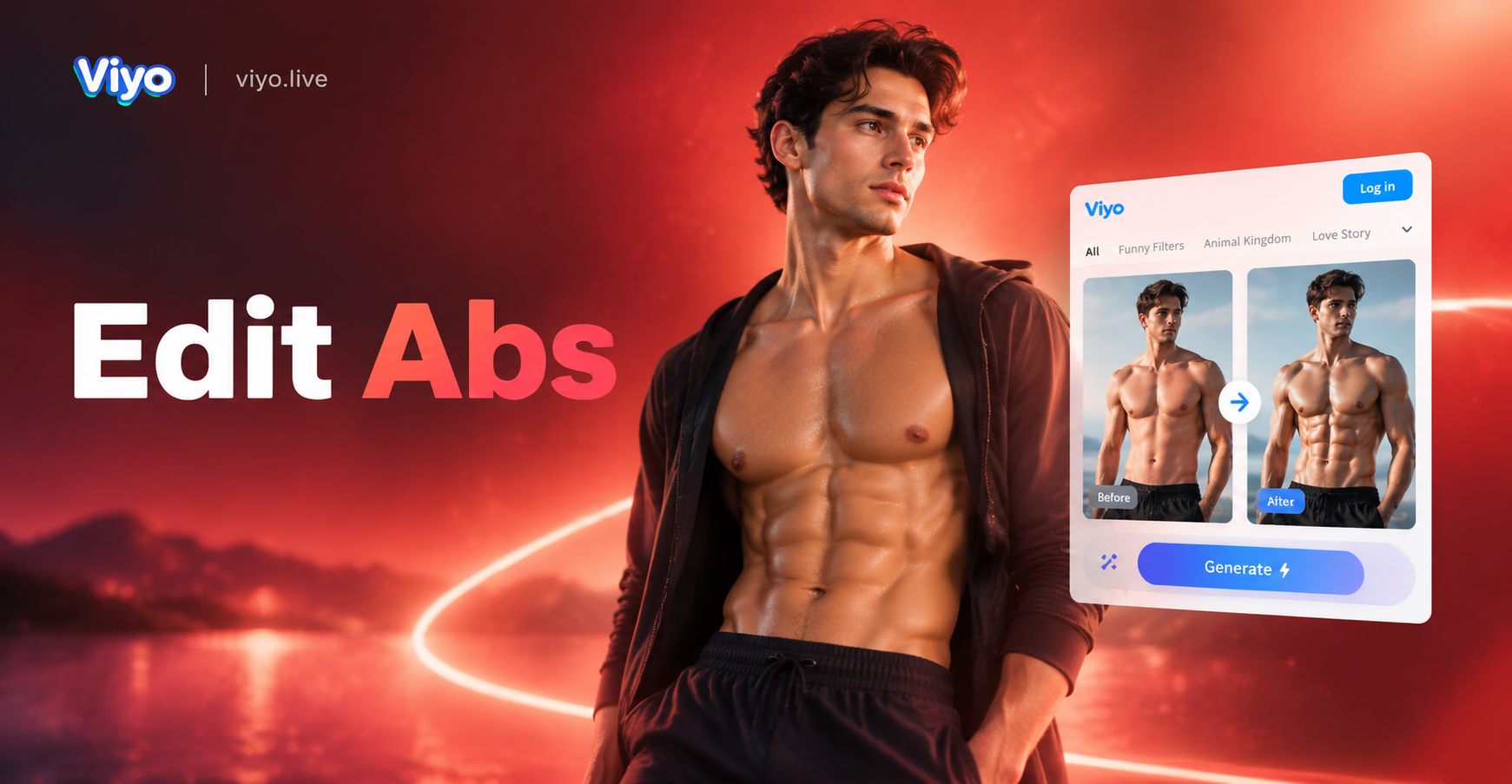
Adding visible abdominal muscles to a picture is no longer a task reserved for professional designers. Whether you want to visualize a fitness goal, create a playful social media post, or simply see a more toned version of yourself, AI photo editing tools make it faster and easier than ever. With the right app, you can transform a regular torso photo into one with defined abs in under a minute. This guide walks you through the exact process using viyo, a mobile AI design app that specializes in realistic image-to-image transformations.
What Does "Edit Abs On a Photo" Mean?
This phrase refers to taking an existing photograph and adding or enhancing abdominal muscle definition. The edit can be subtle, such as lightly increasing the visibility of existing abs, or dramatic, such as creating a full six pack on a previously untoned stomach. The goal is usually to produce a natural looking result that fits the original lighting, skin tone, and body proportions.
Why Use AI Instead of Manual Editing?
Traditional methods like Photoshop require you to manually paint shadows, highlights, and texture. This can take hours and often looks fake if not done perfectly. AI apps flip the script. They use trained models to understand anatomy, lighting, and skin texture, then apply muscle definition automatically. Here is why AI is the better choice for most people:
- Speed: Generate a result in seconds, not hours.
- Realism: AI preserves natural skin pores and lighting direction.
- No Learning Curve: No need to master brushes, layers, or liquify tools.
- Consistency: The same filter can be applied to multiple photos for a matching look.
- Mobile Convenience: Do it all from your phone with the viyo app.
What You Need Before You Start
To get the best results when editing abs on a photo, prepare a good source image. Follow these simple guidelines:
- Clear Torso: The stomach area should be visible. A fitted shirt or shirtless photo works best.
- Good Lighting: Avoid harsh shadows. Soft, even light helps the AI detect skin and muscles accurately.
- Front or Slight Angle: A straight on or three quarter angle gives the AI the best view of the abdominal area.
- High Resolution: Use a photo that is at least 1000 pixels wide to preserve detail.
- Minimal Obstructions: Avoid hands, bags, or loose clothing covering the midsection.
Step By Step: How To Edit Abs On a Photo With viyo
viyo is an all in one AI design tool available on Google Play. It combines text to image, image to image, and image to video capabilities with over one million style filters. For this task, you will use its image to image feature, which lets you upload a photo and apply a muscle enhancement filter while preserving your face and body shape.
Step 1: Download and Install viyo
Open the Google Play Store on your Android device, search for "viyo", and install the app. Once installed, open it and create a free account. The interface is designed for beginners, so you can start editing right away.
Step 2: Upload Your Photo
Tap the upload button on the home screen and select the photo you want to edit from your gallery. Make sure the image meets the guidelines above. After selecting, you will be taken to the editing workspace.
Step 3: Choose the Right Muscle or Body Filter
viyo offers a massive library of style templates. Look for filters labeled with terms like "muscle", "fitness", "body sculpt", or "abs". These filters are specifically trained to add realistic muscle definition to the torso. Tap a filter to preview how it will look on your photo. Some filters may also add overall body toning, so browse a few before deciding.
Step 4: Adjust Intensity and Fine Tune Details
Many filters include an intensity slider. Start with a low intensity setting around 20 to 30 percent to avoid an overdone look. If you want more visible abs, gradually increase the slider. Pay attention to how the shadows and highlights align with your photo's existing light source. The best results come from a balance between definition and natural skin texture.
Step 5: Generate and Save Your Edited Photo
Once you are happy with the preview, tap the generate button. The AI will process the image in a few seconds. After generation, compare the before and after versions. If you want changes, go back and tweak the filter or intensity. When satisfied, download the final image to your device and share it wherever you like.
Manual Alternative: Editing Abs in Photoshop or GIMP
If you prefer full manual control or do not have access to a mobile AI app, you can edit abs using desktop software. This method requires more time and skill but can produce highly customized results.
Using the Liquify Tool to Define Abs
In Photoshop, open your photo and duplicate the background layer. Select Filter, then Liquify. Use the Forward Warp tool with a small brush to gently push the skin inward along the vertical lines where abs should be. Create three horizontal segments on each side of the midline to form a six pack. Be careful not to distort surrounding areas.
Adding Highlights and Shadows for Depth
Create a new layer set to Soft Light blending mode. Use a soft white brush to paint highlights on the upper edge of each ab segment, and a soft black brush to paint shadows along the lower edge. This gives the illusion of three dimensional muscle. Reduce the layer opacity to around 30 to 50 percent so the effect blends naturally with the skin.
Tips for Getting Realistic Abs Edits
- Match the Light Source: Shadows should fall in the same direction as other shadows in the photo.
- Use Subtle Intensity: Overly dark lines look fake. Keep definition soft.
- Preserve Skin Texture: Avoid smoothing the skin too much; pores and small imperfections add realism.
- Consider Body Proportions: Abs should fit the person's overall build. A very slim torso with massive abs looks unnatural.
- Compare with the Original: Always keep the unedited photo on hand to check that the edit remains believable.
Common Mistakes to Avoid When Adding Abs to Photos
- Using a Low Resolution Image: This leads to blurry, pixelated abs that are obviously fake.
- Ignoring the Navel: The belly button must remain in the correct position, not stretched or displaced.
- Over Sharpening the Edges: Hard outlines around each ab segment are a telltale sign of poor editing.
- Forgetting to Blend Skin Tones: If the edited area has a different color than the rest of the torso, it will stand out.
- Applying Too Much Definition: A six pack on someone with very low body fat may look real, but on someone with higher body fat it can appear unnatural. Adjust expectations accordingly.
Can You Edit Abs on a Photo for Free?
Yes, many basic abs editing tasks can be done for free using apps like viyo. The app is free to download and offers a selection of filters that you can try without any cost. Some premium filters or high resolution exports may require credits or a subscription, but you can often achieve impressive results with the free options. Check the app's current offerings to see what is available in your region.
Frequently Asked Questions About Editing Abs on a Photo
Will the AI Edit Look Real?
When you use a high quality source photo and moderate filter intensity, the result can look very realistic. The AI is trained to match existing lighting and skin texture, reducing the uncanny valley effect.
Can I Edit Abs on a Photo With Clothes On?
It is possible to enhance the appearance of a toned midsection through clothing, but the result will be less convincing than editing a bare torso. For best results, use a photo where the stomach is directly visible.
Does viyo Work on iPhone?
Currently, viyo is available on Google Play for Android devices. Check the official website or app store for any updates regarding iOS support.
Can I Also Add Abs to a Video?
Yes, viyo includes image to video features. While adding abs to a static photo is straightforward, animating the abs on a moving person requires more complex video editing. However, you can generate a short video from an edited photo to share on social media.
Conclusion
Editing abs on a photo has never been simpler. With the viyo app, you can upload a picture, choose a muscle filter, adjust the intensity, and generate a realistic six pack in under a minute. Whether you want to visualize your fitness goals or create entertaining content, this guide gives you the exact steps to do it. Download viyo from Google Play today and see how easy it is to transform your photos.