Why Adding Someone to a Picture Is Now Easier Than Ever
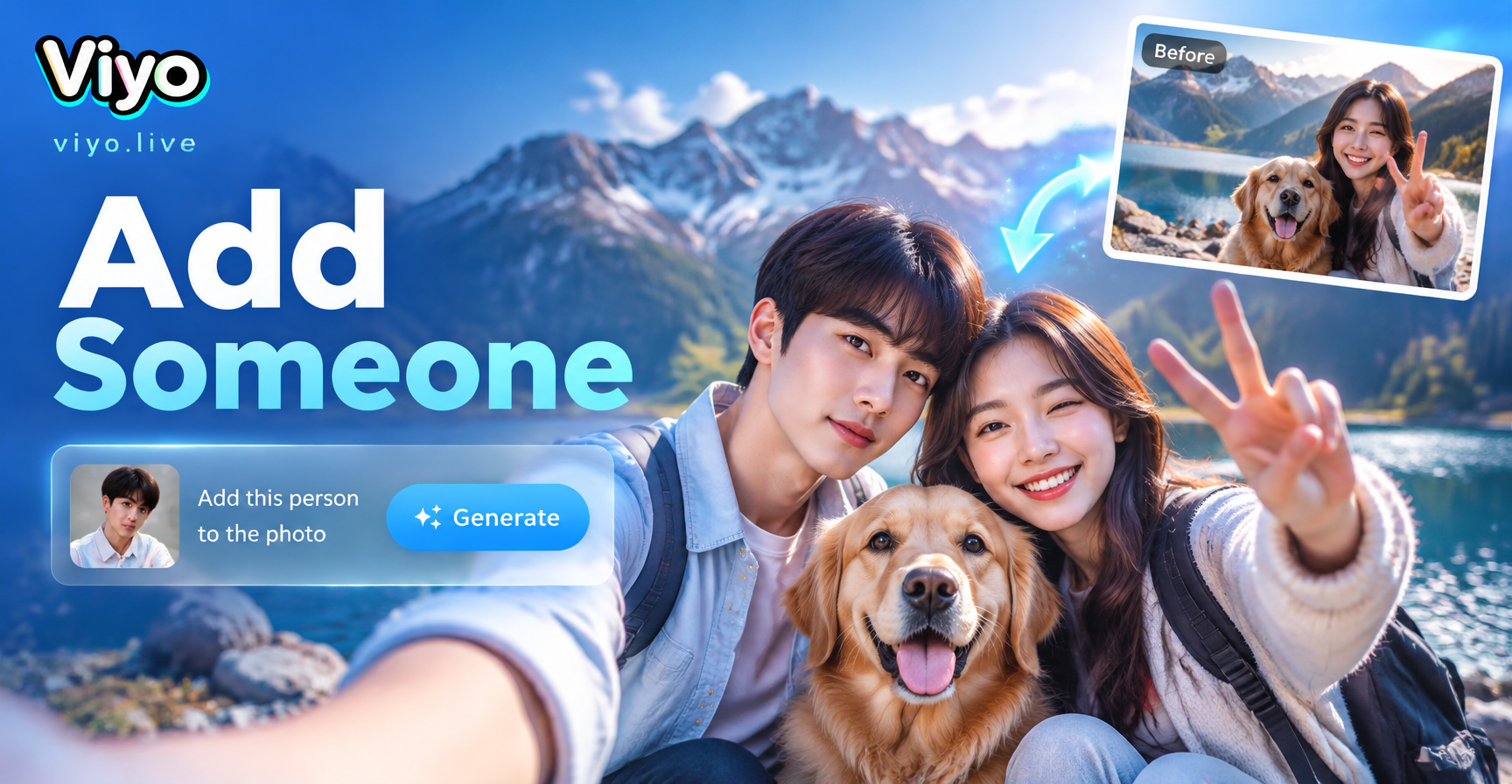
Adding a person to an existing photo used to require hours of careful manual editing in complex software. You had to cut out the person from another image, match lighting and shadows, adjust perspective, and blend everything seamlessly. Most people gave up before getting a convincing result. Today, AI photo editing tools like the viyo app remove all that friction. You simply upload a base photo, describe who you want to add, and the AI generates a realistic composite image in seconds.
Whether you want to include a missing family member in a reunion photo, place a friend into a travel snapshot, or create a fun social media post, viyo makes the process intuitive. The app uses advanced image-to-image generation and inpainting techniques to insert a new person while preserving the original scene's style and lighting.
Common Scenarios Where You Need to Add a Person
- Recreating a complete family portrait when someone was absent.
- Combining friends who could not attend an event into one group photo.
- Placing yourself into a favorite movie scene, travel destination, or artwork.
- Creating humorous or creative content for social media.
- Fixing a photo where someone was accidentally cropped out.
All of these are now possible from your phone, without any design background. The key is knowing the right steps and how to describe the person accurately.
How to Add Someone Into a Picture Using the viyo App
The viyo app is available on Google Play and works entirely on mobile devices. Follow these steps to add a person into any picture.
Step 1: Download and Open the viyo App
Go to Google Play, search for viyo, and install the app. Open it and create a free account. The home screen shows various AI tools, including text-to-image, image-to-image, and video generation. For adding a person to a picture, you will use the image-to-image feature or the inpainting tool if available.
Step 2: Upload Your Base Photo
Choose the image you want to add the person into. This is your base photo. It could be a group shot, a landscape, a room, or any scene. Tap the image-to-image option and select the photo from your gallery. Make sure the base image is clear and well-lit for better results.
Step 3: Use the Image-to-Image or Inpainting Feature
Within the image-to-image tool, you will see an option to describe changes or to paint over an area. If you know exactly where the new person should appear, use the brush or mask tool to highlight that region. This tells the AI where to insert the person. If no masking tool is available, you can simply describe the scene and the desired placement in the prompt.
Step 4: Describe the Person You Want to Add
This is the most important step. In the text prompt field, describe the person clearly. Include details like gender, approximate age, hair color, clothing, pose, and position relative to others. For example, "Add a smiling woman with brown hair wearing a blue dress standing on the left side of the group, looking at the camera." The more specific you are, the more accurate the AI will be. Avoid vague terms like "someone" or "a person".
Step 5: Generate and Refine
Tap the generate button. viyo will process the image and produce a new version with the person added. Review the result carefully. Check if the person blends naturally with the scene. Look for issues like mismatched lighting, wrong scale, or awkward positioning. If you are not satisfied, adjust your prompt or mask and generate again. You can also try different style filters to make the composite look more cohesive.
Step 6: Save and Share
Once you are happy with the result, save the image to your phone. You can share it directly on social media, send it to friends, or use it for personal projects. The whole process takes less than a minute.
Tips for Realistic Results When Adding a Person
AI has become very good at compositing, but a few simple techniques can dramatically improve realism.
Match Lighting and Shadows
The new person should appear to be lit by the same light source as the rest of the photo. If the base image has soft indoor lighting, avoid describing a person with harsh sunlight on their face. Mention lighting in your prompt if possible, such as "soft warm light from the left" or "same lighting as the rest of the photo". Some AI tools automatically match, but a little guidance helps.
Pay Attention to Perspective and Scale
If you are adding a person to a group, make sure their size looks natural compared to others. Someone standing in the back should be slightly smaller than someone in the front. Describe the position and approximate height in your prompt. For example, "standing behind the two people in the front, slightly shorter than the man on the right".
Choose the Right Style Filter
viyo offers over a million style filters, including realistic photography, cinematic, and artistic looks. If your base photo is a candid snapshot, use a realistic filter. If you are placing someone into a painting or illustration, pick a matching artistic style. The right filter can hide minor imperfections and make the composite feel intentional.
Use High-Quality Source Images
The base photo should be at least 1080p for best results. Low-resolution images often lead to blurry or distorted faces. Also, if you have a separate photo of the person you want to add, you can use the image-to-image feature with that person as a style reference, though viyo primarily works by description.
What to Avoid When Adding Someone Into a Picture
Even with AI, certain mistakes can ruin the final image. Here is what to watch out for.
Avoid Ambiguous Descriptions
Prompts like "add a person" give the AI too much freedom and can result in a generic or misplaced figure. Always include at least three specific details: clothing, hair, and position. The more context you provide, the better the AI understands your intent.
Do Not Ignore Background Consistency
If the base photo has a busy background, the AI may struggle to insert a person without leaving artifacts. Look for clean backgrounds or use a mask to isolate the insertion area. If the background is cluttered, try a style filter that simplifies the scene or choose a different base photo.
Avoid Overcomplicating the Prompt
While detail is good, a paragraph-long prompt with contradictory instructions will confuse the AI. Keep it to one or two clear sentences that focus on the person and their placement. You can always refine after seeing the first result.
Creative Ways to Use This Feature
Adding someone into a picture is not just for fixing missing people. Here are some fun and practical applications.
Recreate Family Portraits with Missing Members
If a grandparent or sibling could not attend a family gathering, you can add them into the group photo afterward. The result can be so convincing that it becomes a cherished keepsake.
Put Yourself in a Favorite Scene
Ever wanted to stand in front of the Eiffel Tower or inside a movie poster? Upload a photo of the scene and describe yourself standing there. viyo will place you in with appropriate lighting and style.
Create Fun Social Media Content
Add your pet into a wedding photo, insert a celebrity lookalike into your group shot, or put your friends in a famous painting. These lighthearted edits are perfect for engagement and often go viral.
Frequently Asked Questions About Adding a Person to a Photo
Can I add someone into a picture without any photo editing experience?
Yes. The viyo app is designed for complete beginners. You only need to upload a base photo and describe the person you want to add. The AI handles the complex blending and lighting adjustments automatically.
Does viyo work on iPhone?
Currently, viyo is available only on Android via Google Play. If you have an iPhone, you can still use similar AI photo editing apps, but the steps in this guide are specific to viyo on Android.
How realistic will the added person look?
Realism depends on the quality of your base photo, the clarity of your description, and the style filter you choose. For best results, use a high-resolution base image, describe the person's clothing and position accurately, and select a realistic photography filter.
Can I add multiple people at once?
Yes, you can describe multiple people in the prompt, but it is often easier to add one at a time and then use the result as a new base photo for the next person. This gives you more control over each insertion.
Is adding someone into a picture ethical?
Always consider consent and context. Adding someone to a photo that misrepresents a real event or could harm someone's reputation is unethical. Use this feature for personal, creative, or consensual purposes only.
Final Thoughts
Adding someone into a picture is no longer a task reserved for professional photo editors. With the viyo app and a clear prompt, you can create realistic composite images in seconds. The key is to describe the person accurately, choose the right filter, and refine the result as needed. Download viyo from Google Play today and start turning your photo ideas into reality.